
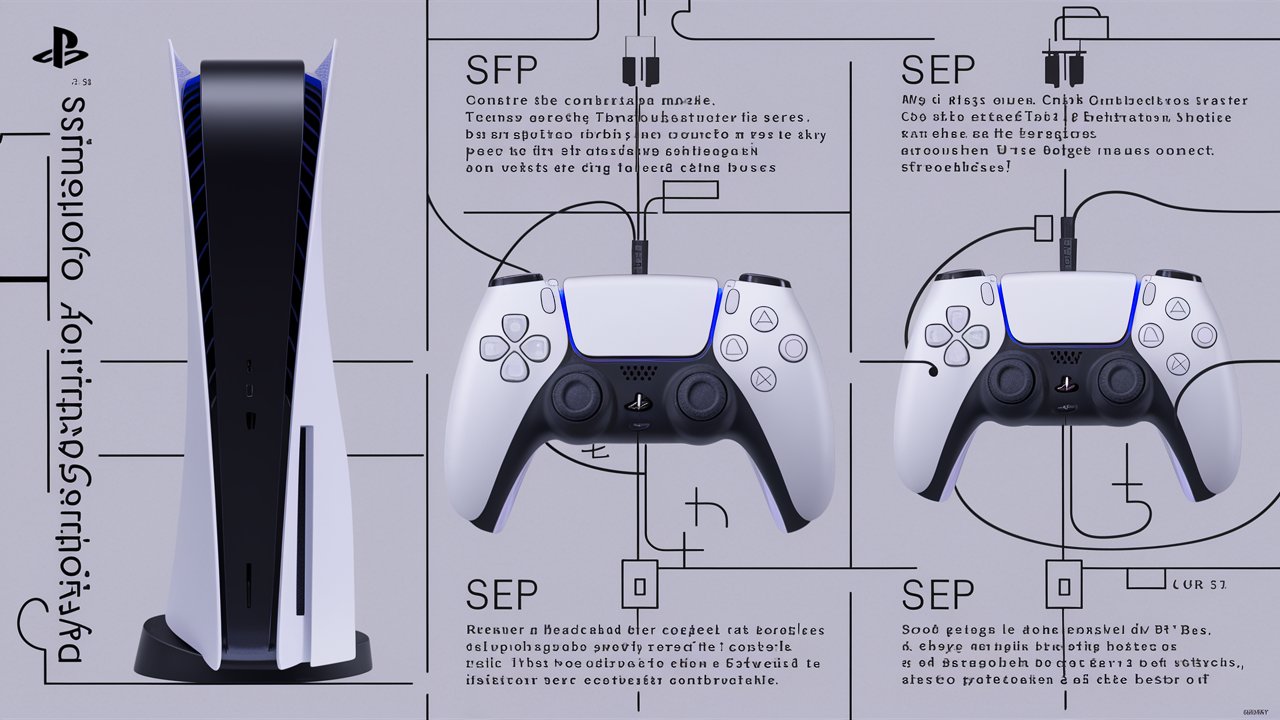
The PlayStation 5 DualSense controller to connect ps5 controller to pc is one of the most advanced gaming controllers ever made, offering immersive haptic feedback, adaptive triggers, and a sleek ergonomic design. Many PC gamers now prefer using the PS5 controller for their favorite titles due to its comfort and precision. However, connecting the PS5 controller to a PC can be confusing for beginners, especially with multiple connection methods available. This comprehensive guide explains how to connect a PS5 controller to a PC using both wired and wireless options, how to configure it for Steam and non-Steam games, and how to troubleshoot common issues. By following these steps, gamers can enjoy a seamless gaming experience with the DualSense controller on Windows.
Understanding the PS5 DualSense Controller
Before connecting the PS5 controller to a PC, it’s important to understand what makes the DualSense unique. The controller features adaptive triggers that adjust resistance based on in-game actions, haptic feedback that simulates realistic vibrations, and a built-in microphone for communication. It also supports both USB-C and Bluetooth connectivity, making it versatile for different gaming setups. When connected to a PC, the DualSense can function as a standard gamepad or take advantage of advanced features in supported games. Knowing these capabilities helps users choose the best connection method for their needs.
How to Connect PS5 Controller to PC via USB Cable
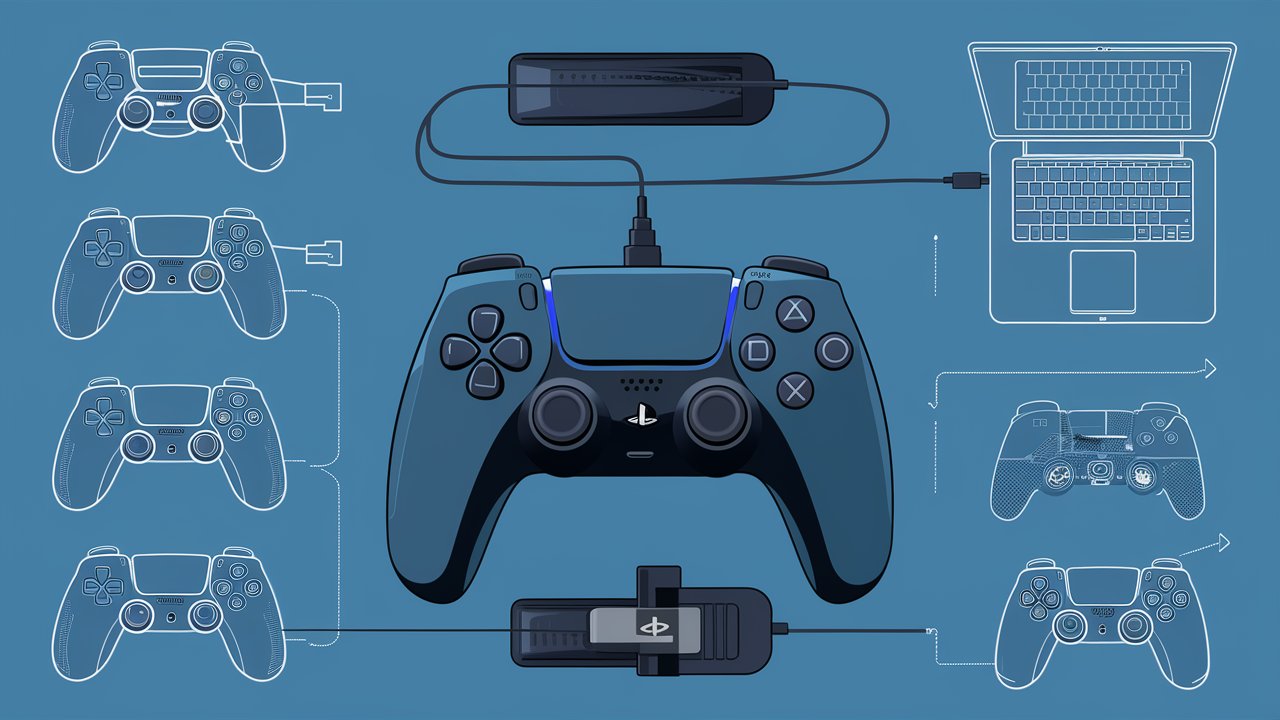
The simplest and most reliable way to connect a PS5 controller to a PC is through a USB-C cable. This method ensures a stable connection with minimal input lag, ideal for competitive gaming or long sessions. To connect, plug one end of the USB-C cable into the controller and the other into a USB port on the PC. Windows will automatically detect the device and install the necessary drivers. Once connected, the controller can be used immediately in most games that support gamepads. Steam users can also configure the controller through Steam’s Big Picture Mode for customized button mapping and sensitivity adjustments. A wired connection is recommended for gamers who prioritize performance and stability over convenience.
How to Connect PS5 Controller to PC via Bluetooth
For those who prefer a wireless setup, connecting the PS5 controller to a PC via Bluetooth is a convenient option. To begin, ensure that the PC has Bluetooth capability. On Windows, open the Bluetooth settings and enable pairing mode. Then, press and hold the PS button and Create button on the controller simultaneously until the light bar starts flashing, indicating it’s in pairing mode. The controller should appear in the list of available devices on the PC. Select it to complete the pairing process. Once connected, the controller can be used wirelessly for gaming, though some advanced features like adaptive triggers may not function fully outside of PlayStation or Steam-supported titles. Bluetooth connectivity offers flexibility and freedom of movement, making it ideal for casual gaming or setups where cables are inconvenient.
How to Use PS5 Controller on Steam
Steam provides native support for the PS5 DualSense controller, making it easy to use across thousands of games. After connecting the controller via USB or Bluetooth, open Steam and navigate to Settings > Controller > General Controller Settings. Enable the option for PlayStation Configuration Support. This allows Steam to recognize the controller and provide customization options such as remapping buttons, adjusting trigger sensitivity, and configuring gyro controls. Steam also displays the PS5 button icons in supported games, enhancing the overall experience. For the best results, ensure that Steam and the controller firmware are updated to the latest versions. Steam’s integration makes the PS5 controller one of the best choices for PC gaming.
How to Use PS5 Controller on Non-Steam Games
While Steam offers built-in support, non-Steam games may require additional configuration to recognize the PS5 controller. One popular solution is using third-party software like DS4Windows, which emulates an Xbox controller to ensure compatibility with most PC games. After installing DS4Windows, connect the PS5 controller via USB or Bluetooth, and the software will automatically detect it. Users can then customize button layouts, adjust sensitivity, and even enable vibration feedback. Another option is to add non-Steam games to the Steam library, allowing them to benefit from Steam’s controller configuration tools. With these methods, the PS5 controller can be used seamlessly across all PC games, regardless of platform.
Troubleshooting PS5 Controller Connection Issues
Sometimes, users may encounter issues when connecting the PS5 controller to a PC. Common problems include the controller not being recognized, Bluetooth pairing failures, or input lag. To fix these issues, start by ensuring that Windows and Bluetooth drivers are up to date. If using a USB connection, try a different cable or port. For Bluetooth issues, remove the controller from the list of paired devices and re-pair it. Restarting both the PC and controller can also resolve temporary glitches. If the controller still doesn’t work, resetting it by pressing the small button on the back with a pin can help restore functionality. Keeping firmware updated through a PlayStation console or the official PC app ensures optimal performance and compatibility.
Benefits of Using a PS5 Controller on PC
Using a to connect PS5 controller with PC offers several advantages beyond comfort and design. The DualSense provides precise analog sticks, responsive triggers, and a high-quality D-pad that enhance gameplay accuracy. Its ergonomic shape reduces hand fatigue during long sessions, while the built-in touchpad and motion sensors add versatility for compatible games. Additionally, the controller’s rechargeable battery and USB-C port make it convenient for both wired and wireless use. For gamers who enjoy both console and PC gaming, the PS5 controller provides a consistent and premium experience across platforms.
Conclusion
Connecting a PS5 controller to a PC is a straightforward process that unlocks a superior gaming experience. Whether through a USB cable for maximum performance or Bluetooth for wireless convenience, the DualSense controller offers exceptional comfort and precision. With native support on Steam and compatibility options for non-Steam games, it’s one of the most versatile controllers available for PC gamers. By following the steps outlined in this guide and keeping software updated, users can enjoy smooth gameplay and take full advantage of the PS5 controller’s advanced features on their computers.
Frequently Asked Questions (FAQ)
1. Can a PS5 controller connect to a PC without a cable?
Yes, the PS5 controller can connect wirelessly via Bluetooth. Simply enable pairing mode on both the controller and PC to establish a connection.
2. Why isn’t my PS5 controller connecting to my PC?
Ensure that Bluetooth is enabled and drivers are updated. If using a USB cable, try a different port or cable. Resetting the controller can also help.
3. Does the PS5 controller work with all PC games?
Most modern games support the PS5 controller, especially through Steam. For non-Steam games, third-party software like DS4Windows can improve compatibility.
4. Can the PS5 controller’s adaptive triggers work on PC?
Adaptive triggers and haptic feedback are supported in some PC games, particularly those on Steam that have integrated DualSense features.
5. How do I update my PS5 controller firmware on PC?
Sony provides a firmware update tool for Windows that allows users to update the controller without a PlayStation console.
6. Is it better to use the PS5 controller wired or wireless on PC?
A wired connection offers lower latency and more stable performance, while Bluetooth provides convenience and mobility. The choice depends on gaming preferences.
